Call of Duty: Warzone graphics tweak to boost FPS
Competent, correct graphics settings in Call of Duty: Warzone is one of the most discussed and exciting topics in the gamer community. This Battle Royale has a lot of fans, but not all of them can boast of powerful gaming PCs, so they are constantly looking for ways to improve the FPS in Warzone so that they can play without “lags” and unnecessary hassle. Now we will figure out how to properly configure your computer and the game itself in order to achieve optimal FSP (frames per second).
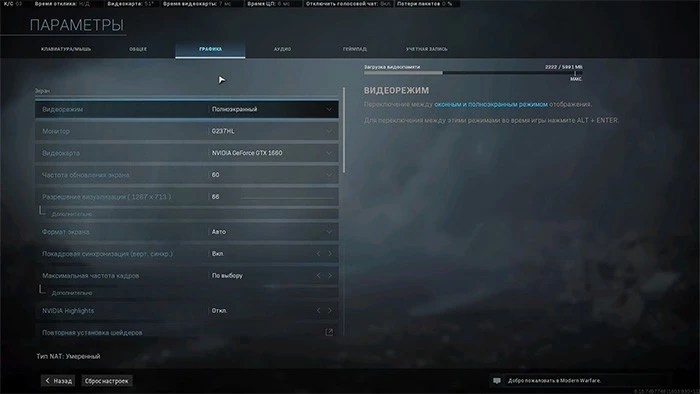
We conducted a thorough analysis of different PC gamers and their Call of Duty configurations, after which we determined the most optimal solutions to the problem of FSP “sagging”. Following the recommendations below, you will learn how to optimize Call of Duty: Warzone by setting up the game client itself and your computer.
In fact, to optimize the gameplay in the game itself, we are interested in 2 sections of settings.
The above graphics settings in Call of Duty: Warzone will be the most optimal for a weak PC.
Now let’s figure out how to optimize Call of Duty: Warzone using the settings of the computer itself. In this regard, we need to do certain manipulations with the task manager and setting up the PC power scheme.
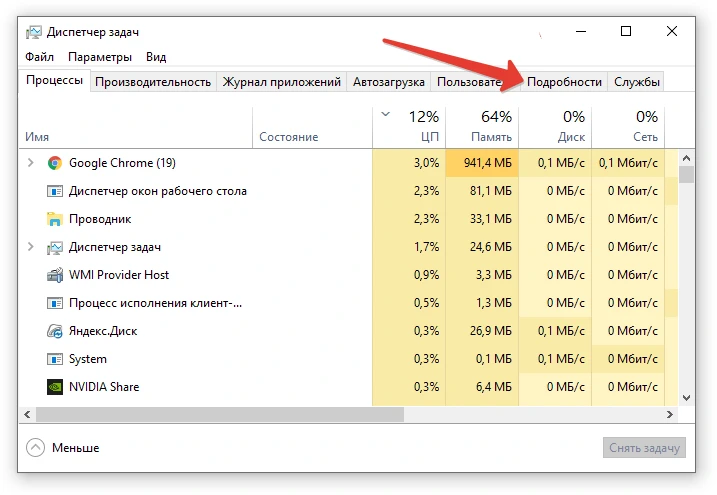
The first step is to launch the game. Then, to launch the Task Manager application on Windows 7, you need to simultaneously press Ctrl, Alt and Del. To open the Manager in Windows 10, you must also press Ctrl, Alt, Del and select “Task Manager” from the menu that appears.
After that, to configure graphics in Call of Duty: Warzone in the Task Manager, you need to:
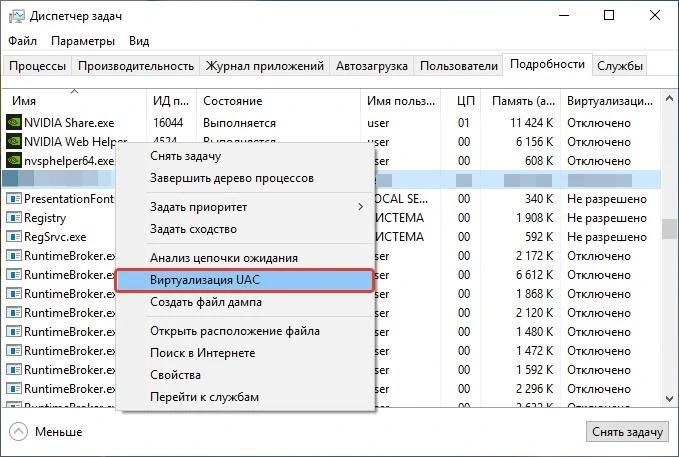
If the above actions in Call of Duty: Warzone FSP are still not “raised”, you need to start the Task Manager again and set “Set Priority” to “Real Time”. Then it is worth checking again if the FPS has changed.
Another secret to optimal graphics settings in Call of Duty: Warzone is changing the computer’s power plan. If you have not previously performed any manipulations with this section, then you have a “Balanced Meal Plan” installed (as intended by the developer). Your task is to change it to “Maximum Performance”. To do this, you need to do the following:
Of course, depending on the version of Windows, the power plans described above may be called differently, and also located in different places. And then you will need to press “Windows” and R, enter “powercfg.cpl”, then select “Setting the power plan” and in the window that opens, set to the maximum all the values u200bu200bthat relate to the processor and video card. This completes the graphics settings in Call of Duty: Warzone in the operating system.
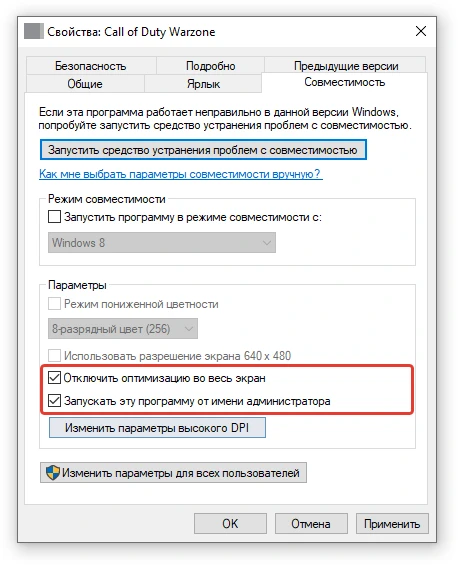
Of course, it may happen that the manipulations we wrote about above did not lead to a significant improvement in performance. Then you’ll have to do a couple more Windows tweaks:
And if you have Windows 10, then there is another way to optimize Call of Duty: Warzone – activating “Game Mode”. This is a new functionality that appeared in the “Ten” and allows you to adjust the computer to “extreme” (gaming) working conditions – that is, to activate the conditions for increased PC performance.
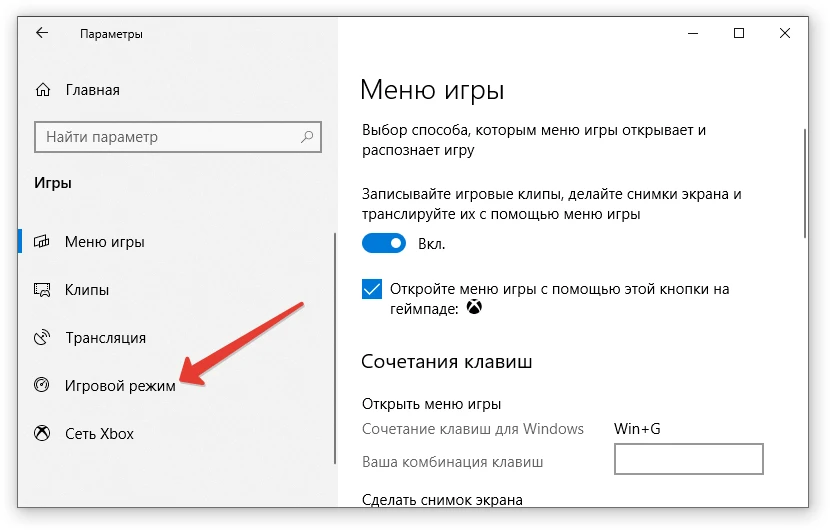
To start “Game Mode”, you need:
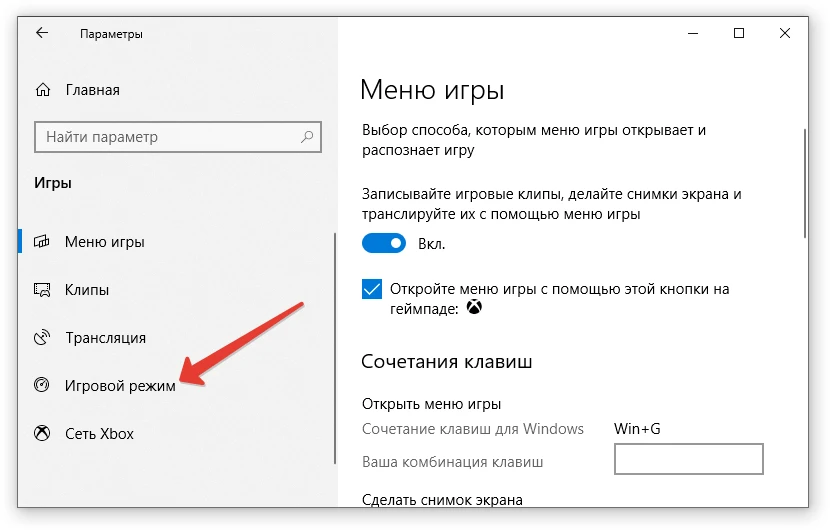
After that, the system will begin to allocate more resources for the game and you will be able to improve the FPS in Warzon . Of course, if you have a very “weak” computer, the above manipulations are unlikely to bring any tangible result. Therefore, first of all, you should study the minimum system requirements for the game and, if your PC meets them, that CoD still “lags”, only then you should try changing the graphics settings in Call of Duty: Warzone and try to improve something.